Search Fundamentals
11 min readGoogle Search Console for Stores
Google Search Console is the only tool that shows you exactly how Google sees your store. It tells you which queries drive impressions and clicks, which pages are indexed, and where technical problems are hurting your visibility. For ecommerce sites, it's the foundation of data-driven SEO.
In this guide
Setting Up GSC for Your Ecommerce Site
Setting up Google Search Console properly for an ecommerce site requires a few steps beyond the basic verification. Start by verifying your domain at the property level using DNS verification rather than a URL prefix. Domain-level verification captures all subdomains and protocol variations, which matters when your store might have separate subdomains for blogs, help centers, or international versions.
Once verified, submit your XML sitemap immediately. For most ecommerce sites, you'll want separate sitemaps for product pages, category pages, and blog content. GSC shows you how many URLs from each sitemap have been indexed versus submitted, giving you a clear picture of your indexation rate. A healthy store should see 85-95% of submitted product URLs indexed.
Connect GSC to Google Analytics 4 as well. The integration lets you combine search performance data with on-site behavior metrics, so you can see not just which queries bring traffic but what those visitors do after they land. This connection is especially valuable for ecommerce because it links search queries directly to revenue.
Indexation Benchmark
A healthy ecommerce site should see 85-95% of submitted product URLs indexed. If your rate is below 70%, you have a significant technical or content quality issue to investigate.
Key Reports for Ecommerce SEO
The Performance report is where you'll spend most of your time. It shows total clicks, impressions, average click-through rate, and average position for every query and page on your site. For ecommerce, filter this report by page type to understand how your product pages perform versus your category pages versus your blog content.
The Pages report within Performance is particularly valuable. Sort by impressions to find pages that Google shows frequently but that get few clicks. These are your quick-win opportunities. A product page with 5,000 monthly impressions but a 1.2% CTR likely has a weak title tag or meta description. Improving those elements alone can double or triple your clicks without any ranking changes.
The Coverage report (now called Page indexing) tells you exactly how many pages are indexed, excluded, and errored. For ecommerce sites with thousands of products, this report often reveals that Google is excluding significant portions of your catalog. Common exclusion reasons include "Crawled - currently not indexed" and "Duplicate without user-selected canonical", both of which are fixable with targeted optimization.
Set up a weekly routine: every Monday morning, check your Performance report for the past 28 days compared to the previous period. Look for queries where impressions dropped more than 20%, which could signal ranking losses that need immediate attention.
Finding Quick Wins in Search Performance
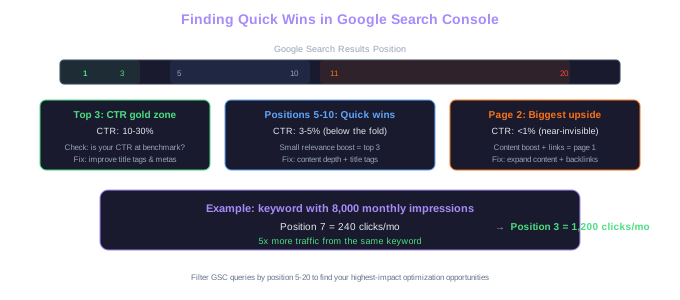
GSC data reveals quick-win opportunities that can boost traffic without creating new content or building links. The most productive place to look is your queries report, filtered to show keywords where your average position is between 5 and 20.
Keywords in positions 5-10 are on the first page but getting minimal clicks because they're below the fold. A small improvement in your page's relevance signals or title tag could push you into the top 3-4, where click-through rates jump from 3-5% to 10-15%. For a product keyword with 8,000 monthly impressions, moving from position 7 to position 3 could mean going from 240 clicks to 1,200 clicks per month.
Keywords in positions 11-20 represent pages on page two of Google. These pages are already relevant enough to rank but need a content boost. Adding more detailed product descriptions, expanding the FAQ section, or building a few quality backlinks can push them onto page one. We've seen stores increase organic traffic by 30-40% just by systematically improving pages that rank on page two.
Also look at keywords where you rank well but your CTR is below average for that position. Position 1 typically gets a 25-30% CTR, position 2 gets 15-18%, and position 3 gets 10-12%. If your page ranks 2nd but only gets an 8% CTR, your title tag and meta description likely need work. Our rank tracking for ecommerce topic covers how to monitor these positions systematically.
Traffic Math
Moving from position 7 (3% CTR) to position 3 (12% CTR) for a keyword with 8,000 monthly impressions means going from 240 to 960 clicks/month. We have seen stores boost organic traffic by 30-40% by systematically improving page-two rankings.
Monitoring Indexation Health
For ecommerce sites, indexation monitoring is critical because unindexed pages generate zero organic traffic. The Page indexing report in GSC shows exactly how many of your pages are in Google's index and why others are excluded.
Check this report at least monthly and track your indexed page count over time. A sudden drop in indexed pages could mean Google encountered crawl errors, your robots.txt was accidentally updated, or a site migration went wrong. We've seen stores lose 40% of their organic traffic overnight because a developer accidentally added a noindex tag to a template that rendered across thousands of product pages.
Pay close attention to the "Discovered - currently not indexed" and "Crawled - currently not indexed" statuses. The first means Google knows about the page but hasn't crawled it yet, often due to crawl budget limitations. The second means Google crawled the page but chose not to index it, usually because the content was too thin or too similar to other pages. For ecommerce, the second status often affects product variants or filtered category pages.
Use the Sitemaps report alongside Page indexing to compare submitted URLs versus indexed URLs. If you submitted 10,000 product URLs but only 6,500 are indexed, you have 3,500 pages that need investigation. Group these by pattern to find systematic issues rather than fixing pages one by one.
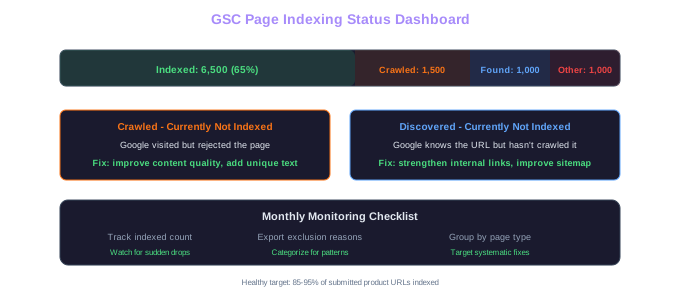
Create a monthly indexation tracking spreadsheet. Record total indexed pages, total excluded pages, and the breakdown of exclusion reasons. Over three to six months, you'll spot trends that reveal whether your site health is improving or declining.
Using the URL Inspection Tool
The URL Inspection tool lets you check exactly how Google sees any specific page on your site. Enter a URL and you'll see whether the page is indexed, when it was last crawled, the canonical URL Google selected, and whether it's eligible for rich results.
For ecommerce, use this tool whenever you publish new products, update important pages, or troubleshoot indexation problems. After launching a new product collection, inspect the main collection page to confirm it's been crawled and indexed. If it hasn't, use the "Request indexing" button to ask Google to crawl it sooner. This doesn't guarantee immediate indexing, but it puts the URL in a priority crawl queue.
The rendered HTML view within URL Inspection is especially useful for stores using JavaScript-heavy frontends. It shows you exactly what Google sees after rendering, which can be very different from your source HTML. If product prices, reviews, or structured data don't appear in the rendered view, Google can't use that information for rankings or rich results.
One common pattern we see is canonical tag conflicts. You might set a canonical pointing to URL A, but Google selects URL B as the canonical. The URL Inspection tool reveals these conflicts so you can fix them. This frequently happens with product pages accessible through multiple category paths or with URL parameters that create duplicate versions.
Turning GSC Data into Action
The value of GSC comes from turning data into action plans. Raw data sitting in reports doesn't improve rankings. You need a systematic process for extracting insights and implementing changes.
Start with a monthly content optimization cycle. Export your top 200 queries from the Performance report and sort them by impressions. For each query, check the landing page and ask: does this page fully satisfy the search intent? Does the title tag include the query? Is the content comprehensive enough? This process typically reveals 15-25 pages per month that benefit from optimization.
Build a technical health dashboard using GSC data. Track your total indexed pages, crawl errors, mobile usability issues, and Core Web Vitals scores over time. When any metric trends in the wrong direction, investigate immediately rather than waiting for traffic drops. Prevention is significantly cheaper than recovery in SEO. A structured ecommerce SEO audit process helps you catch these issues before they impact traffic.
For seasonal ecommerce businesses, use GSC's date comparison feature to understand your traffic patterns year-over-year. Compare this December to last December, this Black Friday week to last year's. This helps you set realistic expectations and identify whether changes in traffic are due to your SEO efforts or simply seasonal patterns. It also helps you prepare content ahead of seasonal peaks by looking at when specific queries start trending upward each year.
Free Tools & Resources
Try our free SEO tools
Work Together With SEO Experts who understand ecommerce
World’s first Ecom-founded SEO agency