Technical SEO
10 min readCrawl Budget Management
Google allocates a limited number of pages it will crawl on your site within a given timeframe. For stores with thousands of products, filter pages, and parameter URLs, mismanaging this crawl budget means Google wastes time on low-value pages while ignoring the ones that actually drive revenue. This is one of the key topics in [technical SEO for ecommerce](/blog/technical-seo-for-ecommerce).
In this guide
- 1. What Crawl Budget Actually Is
- 2. Identifying Crawl Waste in Your Store
- 3. Blocking Low-Value URLs From Crawling
- 4. Monitoring Crawl Stats in Google Search Console
- 5. Server-Side Rendering and Crawl Efficiency
- 6. Prioritizing What Gets Crawled
- 7. Trawler's Crawl Scheduler: What the Leak Tells Us About How Google Budgets
What Crawl Budget Actually Is
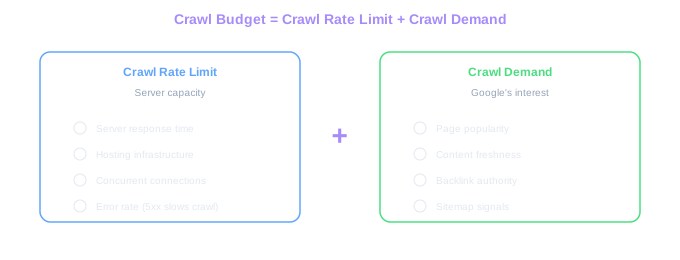
Crawl budget is the combination of two factors: crawl rate limit (how many requests per second Googlebot can make without overloading your server) and crawl demand (how much Google wants to crawl your site based on popularity and freshness). Together, these determine the total number of pages Googlebot will crawl in a given period.
For small stores with under 5,000 pages, crawl budget is rarely a concern. Google will crawl your entire site regularly without issues. But once your store crosses 10,000 URLs (including parameter variations, filter pages, and paginated listings), crawl budget becomes a genuine bottleneck.
A mid-size fashion store we audited had 8,000 actual products but over 340,000 crawlable URLs due to faceted navigation, color/size parameters, sort-order variations, and pagination. Googlebot was spending 85% of its crawl budget on these low-value parameter pages, while 30% of actual product pages had not been recrawled in over 90 days.
Real Audit Finding
A mid-size fashion store had 8,000 products but 340,000 crawlable URLs. Googlebot spent 85% of crawl budget on parameter pages while 30% of product pages went unrecrawled for 90+ days.
Identifying Crawl Waste in Your Store
Crawl waste occurs when Googlebot spends time crawling pages that provide no SEO value. In ecommerce, the biggest sources of crawl waste are faceted navigation URLs, parameter pages, internal search result pages, and excessive pagination.
Faceted navigation is the worst offender. A category page with filters for brand, color, size, price, and rating can generate thousands of URL combinations. Each combination (/shoes?brand=nike&color=black&size=10) is a separate crawlable URL that typically shows the same products in slightly different arrangements. Google does not need to crawl all of these.
Sort-order parameters waste crawl budget silently. URLs like /category?sort=price-low, /category?sort=price-high, /category?sort=newest, and /category?sort=best-selling all show the same products. These pages add zero unique content but can triple or quadruple your crawlable URL count.
Session IDs and tracking parameters appended to URLs (/product?utm_source=email&session=abc123) create duplicate crawlable versions of every page. If your platform appends these parameters and does not handle them with canonical tags, you are multiplying your crawl surface unnecessarily.
Download your server logs for the past 30 days and analyze which URLs Googlebot visited most frequently. You will likely find that parameter pages and filter URLs dominate the crawl, while product pages receive far fewer visits than they should.
Blocking Low-Value URLs From Crawling
The primary tool for preventing crawl waste is robots.txt. By disallowing specific URL patterns, you tell Googlebot not to bother crawling those pages. For ecommerce, this typically means blocking faceted filter parameters, sort orders, internal search results, and cart/checkout pages.
A practical robots.txt for an ecommerce store might include rules like Disallow: /*?sort=, Disallow: /*?filter=, Disallow: /search, and Disallow: /cart. These rules prevent Googlebot from wasting crawl budget on pages that should never appear in search results.
Be careful with robots.txt blocking. It prevents crawling, not indexing. If other pages link to a blocked URL, Google may still index it based on anchor text and link context, even without crawling the page itself. For pages you want completely excluded from the index, combine robots.txt blocking with noindex meta tags or canonical tags.
Another approach is using the URL Parameters tool in Google Search Console (when available) to tell Google how specific parameters affect page content. You can indicate whether a parameter like "sort" changes content, and whether Google should crawl all, some, or no URLs with that parameter. This gives you granular control without modifying your robots.txt.
Budget Reallocation
Blocking filter and sort parameters via robots.txt typically shifts 15-25% of crawl budget back to product pages within 2-4 weeks, increasing product crawl frequency by 40% or more.
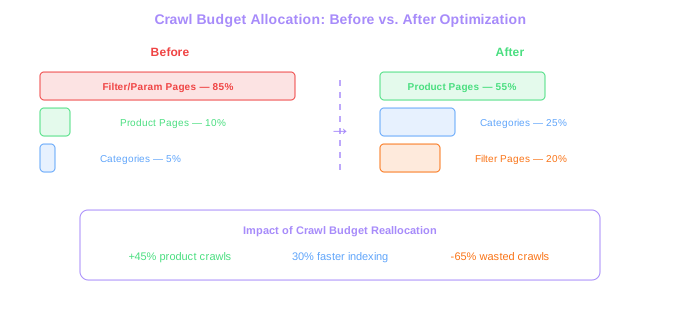
After updating your robots.txt, monitor the Crawl Stats report in Google Search Console for two to four weeks. You should see the total pages crawled decrease while the crawl frequency of your important pages increases.
Monitoring Crawl Stats in Google Search Console
Google Search Console provides a Crawl Stats report under Settings that shows how Googlebot interacts with your site. This report reveals total crawl requests, average response time, crawl request breakdown by response type, and crawl purpose (discovery vs. refresh).
Pay attention to the response code breakdown. If a significant percentage of crawl requests return 301/302 redirects, 404 errors, or 5xx server errors, you are wasting crawl budget on broken or redirected URLs. A healthy ecommerce site should see 90% or more of crawl requests returning 200 status codes.
The file type breakdown shows whether Googlebot is spending time downloading images, CSS, JavaScript, or other resources disproportionately. If JavaScript files dominate your crawl requests, it may indicate rendering issues that force Googlebot to make extra requests to understand your pages.
Compare your crawl stats month over month. A sudden drop in crawl requests can indicate server performance issues or robots.txt changes that blocked too much. A sudden spike might mean Google discovered a new batch of parameter URLs or that a sitemap change exposed previously hidden pages. Both scenarios need investigation.
Server-Side Rendering and Crawl Efficiency
How your store renders pages directly impacts crawl efficiency. Client-side rendered (CSR) pages built with JavaScript frameworks like React or Vue require Googlebot to make multiple requests: first to download the HTML shell, then to fetch and execute JavaScript, and finally to render the page content. This process is slower and consumes more crawl budget per page.
Server-side rendering (SSR) delivers fully rendered HTML on the initial request, allowing Googlebot to understand page content immediately. For ecommerce sites, SSR or static site generation (SSG) typically results in 40% to 60% more pages crawled per crawl session compared to CSR equivalents.
Shopify stores are server-side rendered by default, so this is rarely a concern for Shopify merchants. But stores built on headless architectures with React/Next.js or Vue/Nuxt.js need to ensure their SSR implementation is working correctly. We have seen headless stores where a misconfigured SSR setup caused Googlebot to see empty product pages, leading to mass de-indexation.
Test how Google sees your pages using the URL Inspection tool in GSC. Click "View Tested Page" to see both the raw HTML response and the rendered HTML. If the rendered version is missing product information, prices, or reviews, your rendering setup needs attention. Every missing element is a wasted crawl opportunity.
Prioritizing What Gets Crawled
Beyond blocking low-value pages, you can actively direct Googlebot toward your most important content. Internal linking is the strongest signal for crawl priority. Pages with more internal links pointing to them get crawled more frequently and more quickly after updates.
Keep your XML sitemap lean and accurate. Include only pages you genuinely want indexed: product pages, category pages, key blog posts, and essential informational pages. Remove out-of-stock products (or redirect them), noindexed pages, and parameter URLs from your sitemap. A sitemap with 5,000 important URLs beats one with 50,000 URLs where 90% are junk.
Update your sitemap's lastmod dates accurately. When you update a product page's price, description, or availability, the lastmod date should reflect the change. Googlebot uses lastmod as a signal for recrawl priority. We have seen stores set all lastmod dates to the same value (or use today's date for every page), which destroys the signal and makes Google ignore lastmod entirely.
For time-sensitive changes like sales, price drops, or new product launches, you can use the Indexing API (for eligible site types) or manually request indexing through GSC's URL Inspection tool. This is not a scalable solution for thousands of pages, but it works well for high-priority individual pages.
Create a "priority pages" list of your top 100 revenue-generating product and category pages. Ensure these pages have the most internal links, appear in your sitemap, and get updated lastmod dates whenever content changes.
Trawler's Crawl Scheduler: What the Leak Tells Us About How Google Budgets
The leak named the crawl system Trawler and exposed the inputs that drive its scheduling. URLs that earn frequent updates from "crawl-worthy" signals — link equity, lastmod accuracy, internal link depth, recent content changes — get revisited often. URLs that don't, slip into infrequent crawl tiers regardless of how important they are commercially.
For large catalogues, the scheduler's behaviour explains why some PDPs go weeks without re-crawl. The fix is rarely "raise crawl budget via robots.txt or sitemaps" — it's making important PDPs crawl-worthy. Internal links from frequently-crawled pages (homepage, category hubs, recent blog posts) pull deeper PDPs into more frequent tiers. Accurate lastmod values in XML sitemaps tell Trawler when a re-crawl is justified.
The inverse matters too. Faceted-navigation URLs and parameterised duplicates burn the crawl budget Trawler allocates to your domain, leaving fewer cycles for the URLs you want indexed. Aggressive parameter handling, rel=canonical, and disallow rules on truly redundant URLs free up Trawler cycles for revenue pages.
Free Tools & Resources
Try our free SEO tools
Work Together With SEO Experts who understand ecommerce
World’s first Ecom-founded SEO agency