Measuring Results
12 min readSEO Analytics with GA4
Google Analytics 4 changed how ecommerce stores measure organic search performance. The event-based data model gives you granular visibility into how organic visitors interact with product pages, add items to cart, and complete purchases. Mastering GA4's ecommerce reports and exploration tools lets you tie every SEO action directly to revenue, which is essential for [calculating SEO ROI](/academy/calculating-seo-roi).
In this guide
Configuring GA4 for Ecommerce SEO Tracking
Before you can measure SEO performance in GA4, you need the right ecommerce events firing correctly. GA4 relies on specific event names: view_item, add_to_cart, begin_checkout, and purchase. Each event must include item-level parameters like item_id, item_name, item_category, price, and quantity. Without these parameters, your ecommerce reports will be empty or unreliable.
For Shopify stores, the built-in GA4 integration handles purchase events automatically, but often misses view_item and add_to_cart events. You'll need a custom data layer or a tag management setup through Google Tag Manager to capture the full funnel. WooCommerce and Magento have similar gaps that require plugin configuration or developer work to fill.
Once your events are firing, verify them in GA4's DebugView. Walk through your store as a customer would: land on a product page, add to cart, and complete checkout. Confirm each event appears in DebugView with all required parameters. A single missing parameter can break downstream reports, so thorough testing at this stage saves hours of debugging later.
Finally, connect Google Search Console to your GA4 property. This integration surfaces organic search queries alongside your GA4 engagement data. Navigate to Admin, then Product Links, then Search Console Links to set it up. The combined data lets you see which search queries drive not just clicks, but actual conversions.
Shopify GA4 Gap
Shopify's built-in GA4 integration handles purchase events but often misses view_item and add_to_cart. Without these, your funnel reports show zero mid-funnel data. Use Google Tag Manager to fill the gaps.
Building Organic Traffic Segments
GA4 does not separate organic traffic by default in most reports. You need to build segments and comparisons to isolate organic search visitors from other channels. This is fundamental to understanding your SEO performance.
Create a segment where Session source/medium matches google / organic. You can expand this to include other search engines by adding conditions for bing / organic, yahoo / organic, and others relevant to your market. Save this as a reusable segment so you can apply it across any exploration report without rebuilding it each time.
For deeper analysis, create sub-segments that separate branded from non-branded organic traffic. Use a regex pattern matching your brand name and common misspellings in the Session manual term dimension. Non-branded organic traffic is the truest measure of SEO success because these visitors found you through the relevance of your content, not prior brand awareness.
Also consider building segments by landing page group. Create one segment for organic visitors who land on product pages, another for category pages, and a third for blog or content pages. Comparing these segments reveals which page types convert best from organic search and where you should focus your optimization efforts.
Name your segments with a consistent prefix like 'SEO -' followed by the description. This groups all your SEO-related segments together in the picker and makes them easy to find as your list grows.
Essential GA4 Reports for Ecommerce SEO
The Landing Page report under Engagement shows which pages organic visitors arrive on and how they perform. Add a comparison for your organic traffic segment, then sort by sessions to find your top SEO entry points. The key metrics to watch here are engagement rate, average engagement time, and conversions. A product page with high organic sessions but low engagement rate suggests a mismatch between search intent and page content.
The Ecommerce Purchases report under Monetization shows item-level revenue, quantity sold, and purchase count. When filtered to organic traffic, this report reveals which products generate the most revenue from SEO. You may find that your top-selling products overall are not the same as your top organic revenue generators. This insight shapes which product pages deserve more SEO investment.
The Conversion Path report under Advertising shows the role organic search plays across the full customer journey. Ecommerce purchases rarely happen in a single session. A customer might discover your store through an organic search, return via a branded search, and finally purchase through a direct visit. The conversion path report attributes proper credit to each touchpoint, showing you the true influence of SEO on revenue even when it's not the last click.
Use the User Acquisition report to track new user growth from organic search over time. This metric is a strong leading indicator of SEO health. If new organic users are trending upward month-over-month, your SEO efforts are expanding your audience reach.
Custom Explorations for SEO Analysis
GA4's Exploration workspace is where serious SEO analysis happens. The standard reports provide overview metrics, but explorations let you build custom analyses that answer specific business questions.
Build a Free Form exploration with these dimensions: Landing page, Session source/medium, Device category, and Country. Add metrics for Sessions, Engaged sessions, Ecommerce purchases, and Purchase revenue. Apply your organic segment, and you have a comprehensive SEO performance dashboard that shows conversion rates by landing page, device, and geography. Export this monthly to track trends.
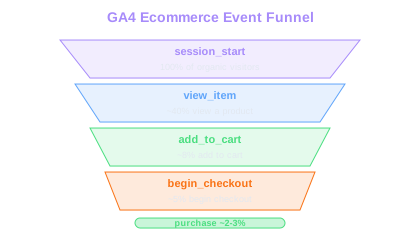
Create a Funnel Exploration to visualize the organic visitor journey. Set the steps as: session_start on any product or category page, then view_item, add_to_cart, begin_checkout, and purchase. This funnel shows you exactly where organic visitors drop off. If 40% of organic visitors view a product but only 3% add to cart, the issue is on the product page itself, not your SEO. If organic visitors add to cart at a healthy rate but abandon checkout, the problem is downstream.
A Path Exploration reveals the pages organic visitors view after landing. This is valuable for understanding internal navigation patterns and validating your rank tracking efforts. You might discover that organic visitors who land on blog posts frequently navigate to specific product categories, which tells you to strengthen internal linking between those content pieces and product pages.
Save your most-used explorations as templates. GA4 lets you duplicate explorations, so build one master version with your standard dimensions, metrics, and segments, then clone it for each new analysis period.
Tracking Organic Revenue and Conversions
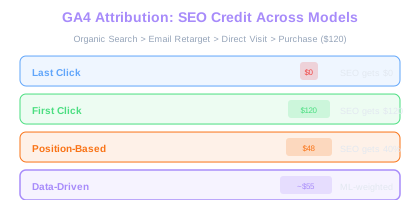
Attributing revenue to organic search requires understanding GA4's attribution models. By default, GA4 uses data-driven attribution, which distributes conversion credit across all touchpoints based on machine learning. For most ecommerce stores, this gives a more accurate picture of SEO's contribution than last-click attribution.
To see organic search revenue, navigate to the Advertising section and use the Model Comparison report. Compare data-driven attribution against last-click to understand how much revenue organic search influences versus directly drives. Typically, organic search's contribution is 20-40% higher under data-driven attribution because it captures the discovery sessions that start the purchase journey.
Set up custom events to track micro-conversions that indicate SEO-driven engagement. Wishlist additions, email signup forms completed from organic landing pages, and product comparison tool usage are all signals that organic visitors are engaging with commercial intent even if they don't purchase immediately. These micro-conversions serve as leading indicators that organic traffic quality is improving.
Build a monthly organic revenue report that tracks total organic revenue, organic conversion rate, average order value from organic traffic, and revenue per organic session. Compare these metrics month-over-month and year-over-year. Seasonal ecommerce businesses should rely on year-over-year comparisons to account for natural demand fluctuations. A 15% year-over-year increase in organic revenue during Q4 means far more than a month-over-month comparison against the quieter summer months. For a deeper look at building ecommerce SEO measurement frameworks, explore how revenue attribution connects to broader organic strategy.
Attribution Gap
Data-driven attribution typically credits organic search with 20-40% more revenue than last-click. For a store doing $500K/month in organic revenue under last-click, the real SEO influence could be $600K-700K.
Common GA4 Pitfalls for Ecommerce SEO
Data thresholding is the most frustrating GA4 issue for ecommerce SEO teams. When your segments have small sample sizes, GA4 applies thresholding and hides rows of data to protect user privacy. This often happens when you filter organic traffic by specific landing pages. The workaround is to use longer date ranges, broader segments, or BigQuery exports where thresholding does not apply.
Another common issue is referral spam and bot traffic inflating organic numbers. GA4 has some built-in bot filtering, but it misses many automated visitors. Check your organic traffic for suspiciously high session counts from single pages with 0% engagement rate and 0 second engagement time. Create a filter in your explorations to exclude sessions with engagement time under 1 second to get cleaner data.
Careless UTM tagging on internal links also corrupts organic attribution. If your email marketing links or internal banner links use UTM parameters, they override the original traffic source. An organic visitor who clicks an internal link with a UTM tag gets reclassified as that new source, and you lose track of the organic session. Audit your site for internal links containing UTM parameters and remove them.
Finally, watch for data discrepancies between GA4 and Search Console. GSC counts clicks to your site while GA4 counts sessions. These numbers will never match exactly because of ad blockers, JavaScript loading failures, and user behavior differences. A 10-15% gap between GSC clicks and GA4 organic sessions is normal. If the gap exceeds 20%, investigate whether your GA4 tracking code fires correctly on all page templates.
Free Tools & Resources
Try our free SEO tools
Work Together With SEO Experts who understand ecommerce
World’s first Ecom-founded SEO agency